
Summarize this blog post with:
Are you struggling to manually track and organize your Instagram Insights data? If so, it’s likely because of the following reasons:
- You are juggling spreadsheets, copy-pasting KPIs from different accounts.
- You don’t have custom dashboards to share with clients.
- No centralized reporting system in Google Sheets.
If any of these sound familiar, you are not alone. With a constant flow of data, ranging from engagement rates to follower growth, it’s easy to feel buried under spreadsheets. The result? Your content strategy starts to crack, and client satisfaction takes a hit.
Don’t worry. The solution is to automate Instagram Insights reporting in Google Sheets using a reliable social media reporting software such as Two Minute Reports.
In this guide, I’ll take you through two easy steps to connect your Instagram Insights data with Google Sheets using Two Minute Reports. By the end, you’ll learn how to streamline Instagram insights reporting and elevate your brand to the next level.
Let’s get started.
How to connect Instagram Insights data to Google Sheets?
You can connect Instagram Insights data to Google Sheets using the following methods:
Method 1: Connecting Instagram Insights to Google Sheets using sidebar.
Method 2: Connecting Instagram Insights to Google Sheets using pre-built templates.
To begin with, install the Two Minute Reports add-on from the Google Workspace Marketplace. Once installed, you can proceed with the following steps explained below.
Method 1: Connecting Instagram Insights to Google Sheets using the sidebar
To create a Connection, you must connect your Instagram Insights account to Google Sheets.
To do this, launch the Two Minute Reports add-on from the Extensions menu in your spreadsheet. Next, open the sidebar and perform the following steps:
Go to Menu > Click Connections > Click Add to start creating your new Connection.
Once this is done, the “Adding new connection” dialog box appears. Next, you can follow the steps below to authenticate your Instagram Insights connection with Two Minute Reports.
1. Select the Instagram Insights connector.
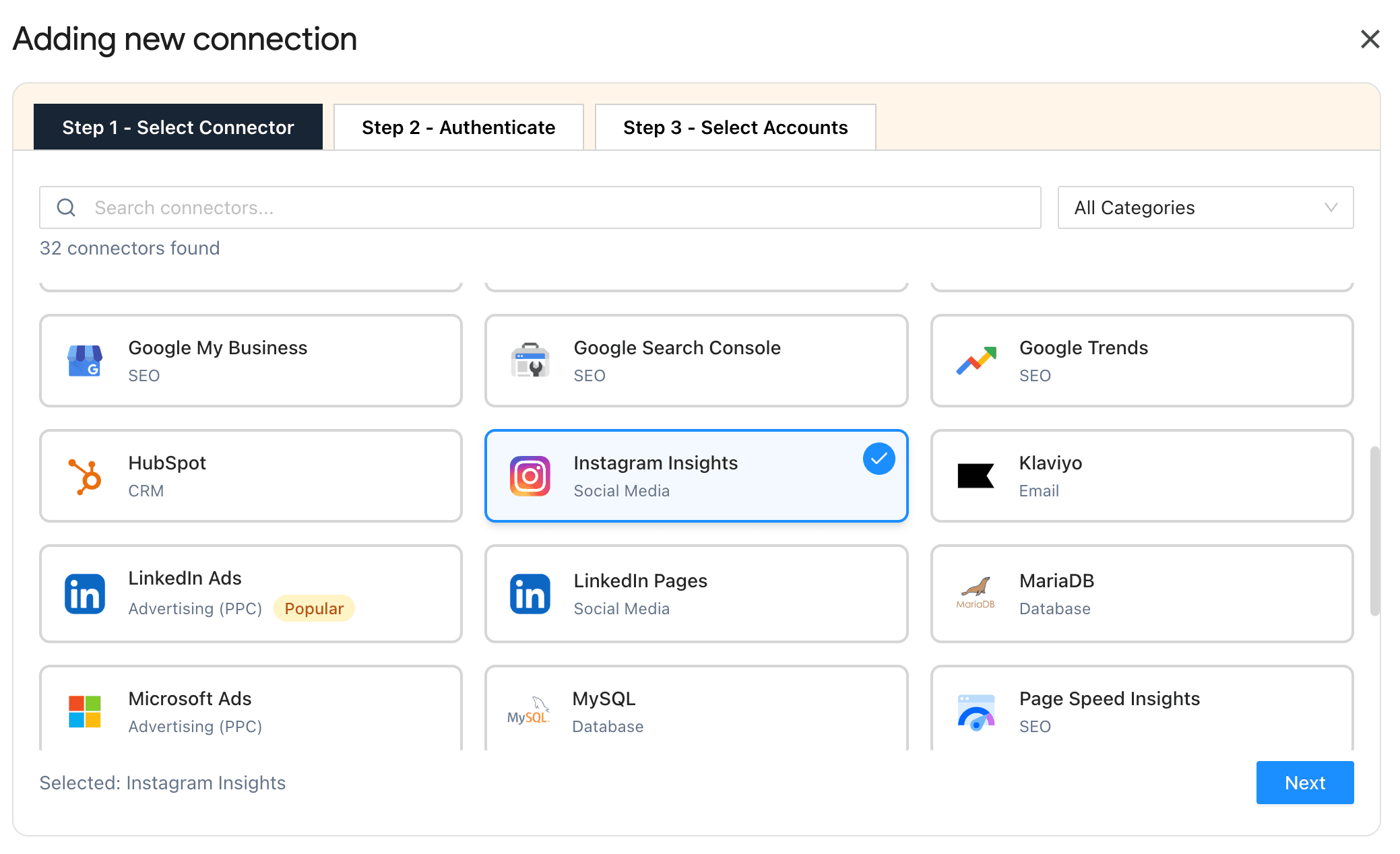
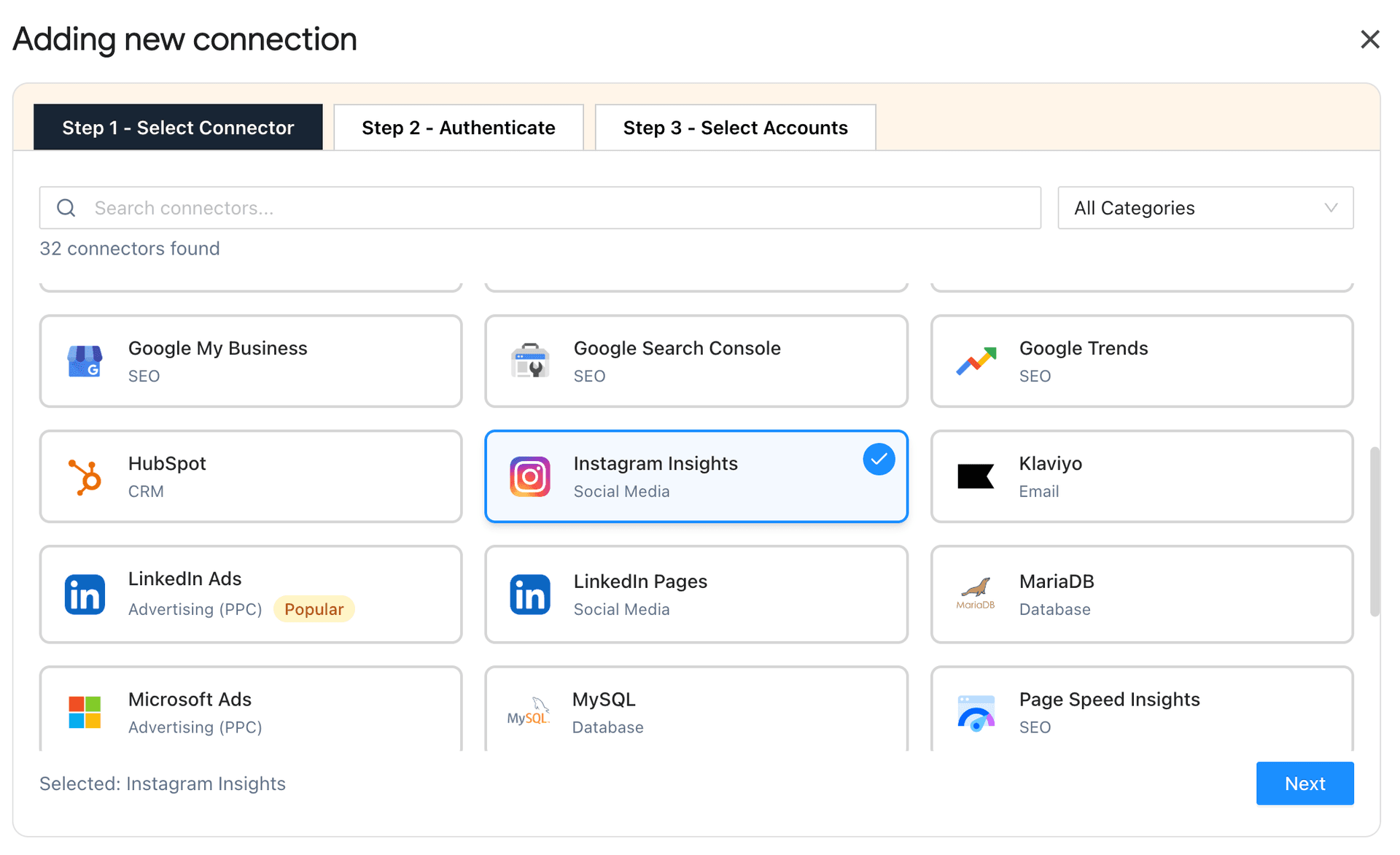
2. Next, authorize your Connection by specifying the login credentials. Once you’ve authenticated, you can visualize the following fields: Account name, ID, Name, Status and Speedboost as shown below:
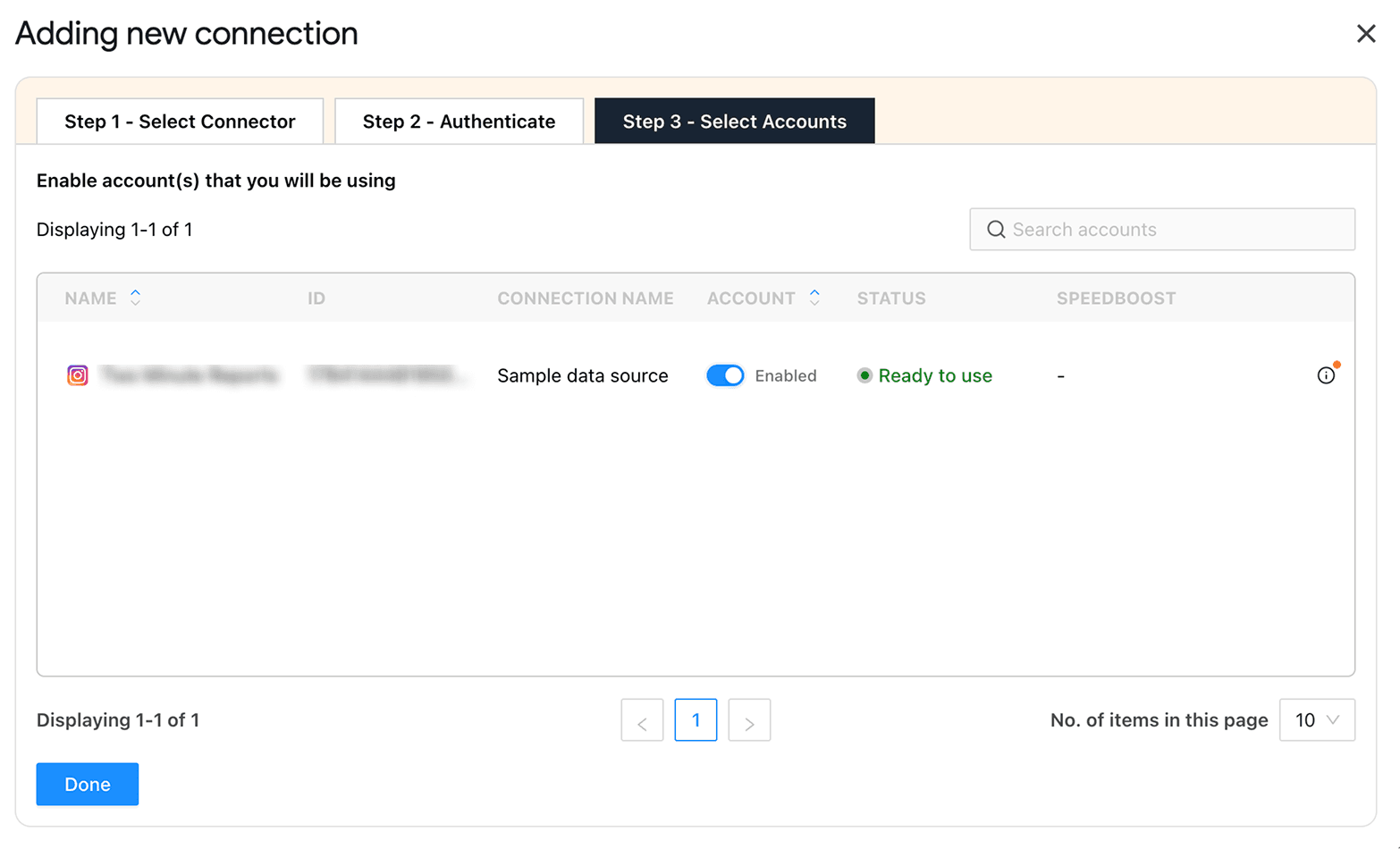
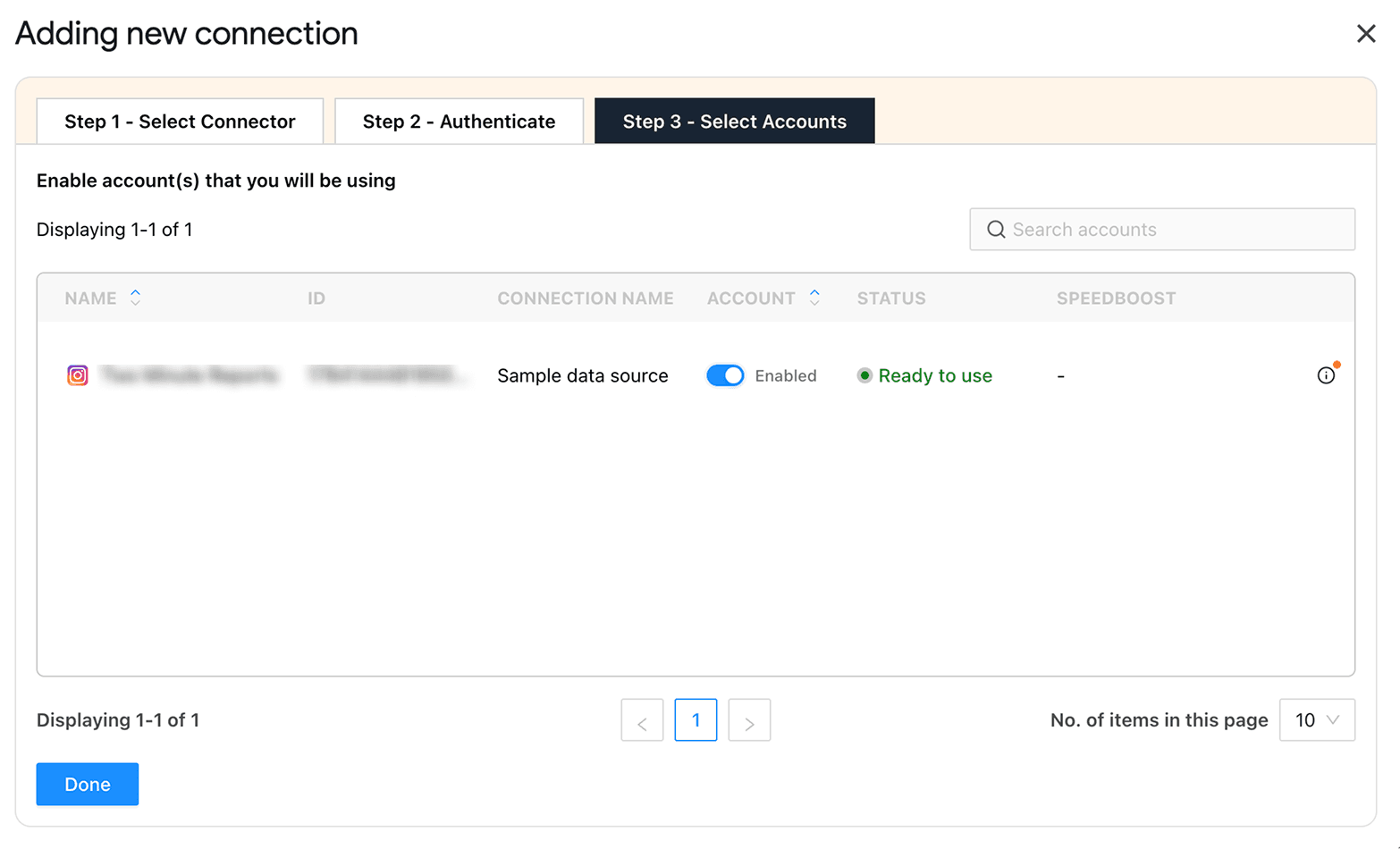
3. Enable the toggle for the accounts you want to run queries. Please note that you cannot extract data from disabled accounts.
Note: With Speedboost, you can load complex Instagram Insights dashboards in seconds, ensuring your performance data updates quickly and without delay, keeping you on top of the latest trends in real-time.
Now that you’ve created the Connection, the next step is to create a query. Let’s explore how to do that.
Step 2: Creating a query and report configuration
To extract your Instagram Insights data, click Data Queries from the Menu dropdown. Then execute the steps below:
1. Click Add and choose your desired Instagram Insights accounts from the sidebar.
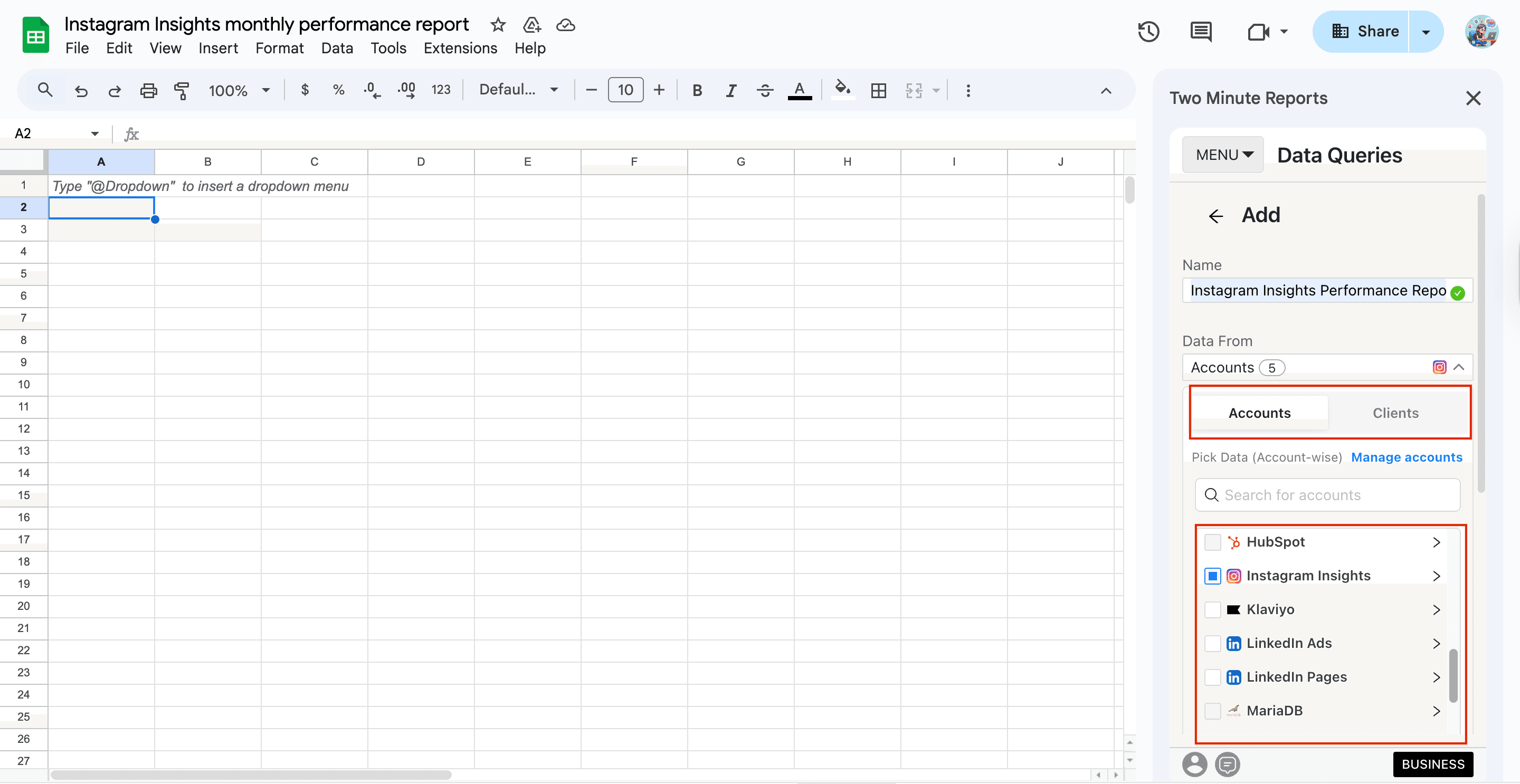
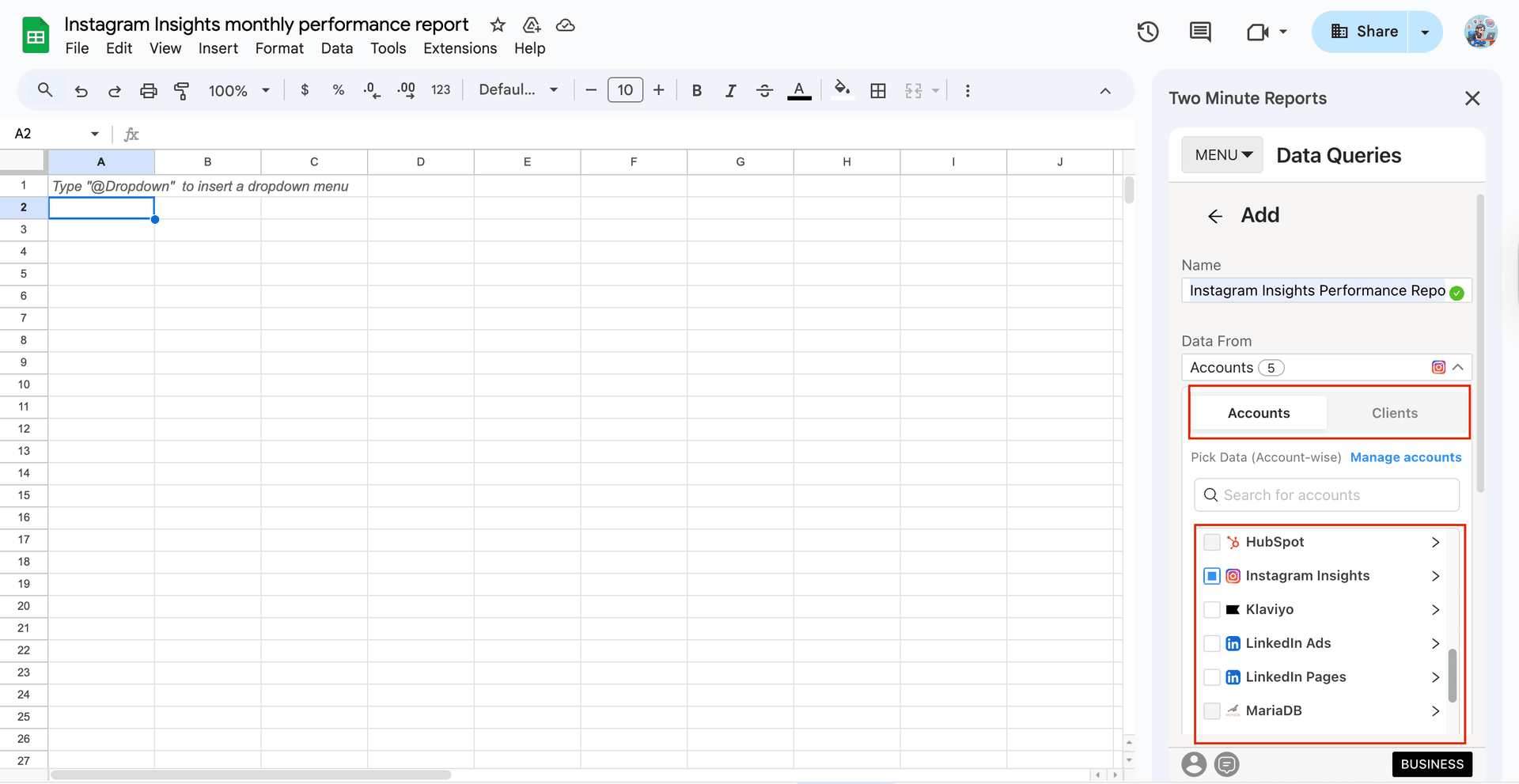
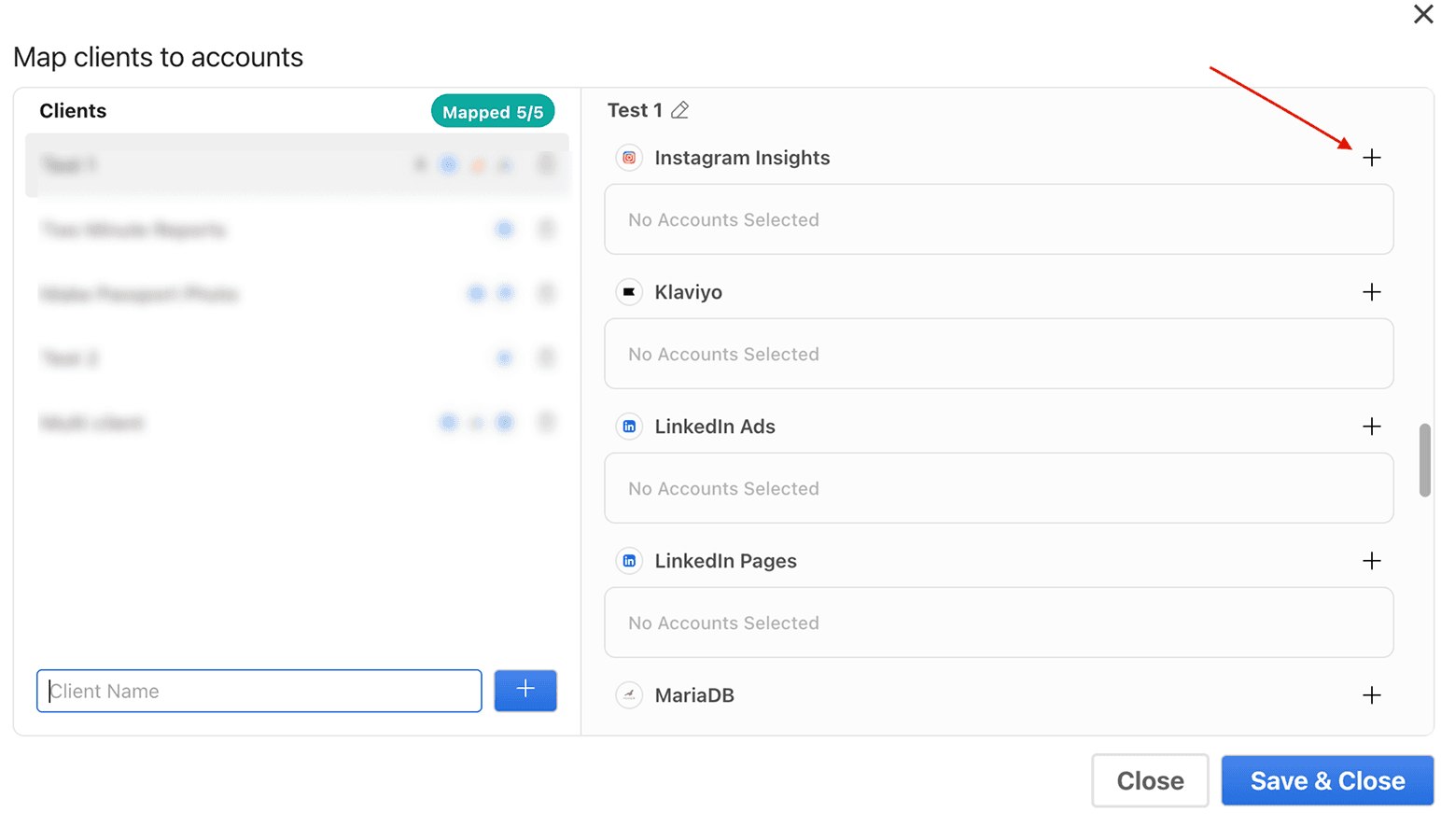
2. Alternatively, navigate to the “Clients” section. Click on “Manage clients” and map the necessary account details. Once done, click Save & Close to save your client’s details.
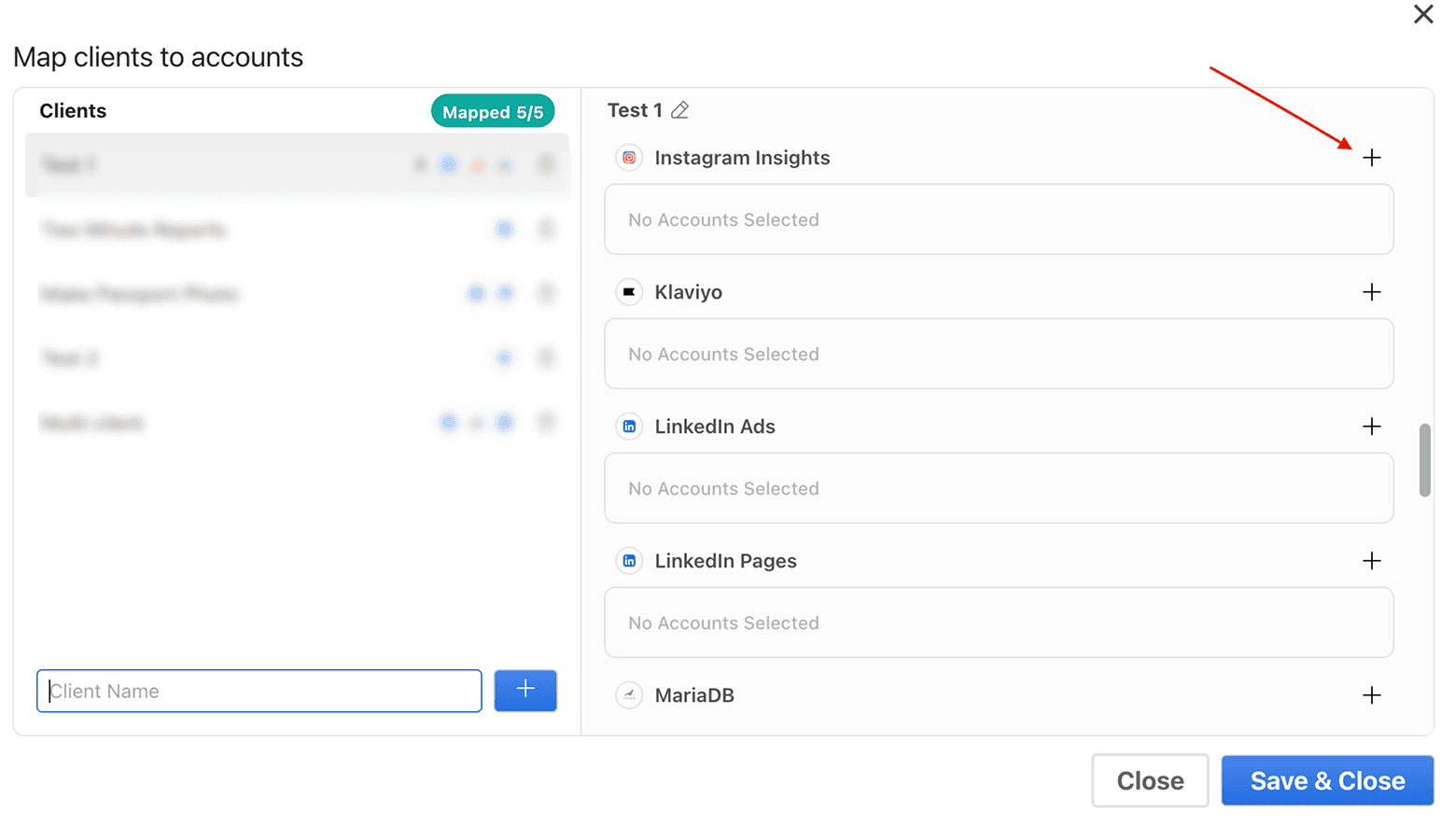
3. Next, add the required Instagram Insights metrics and dimensions you want to analyze. Then, select the date range to track and measure your profile performance.
4. Once you finish the above steps, click Run query to visualize the performance. This query fetches data from your chosen accounts and displays them in the sheet and cell of your choice.
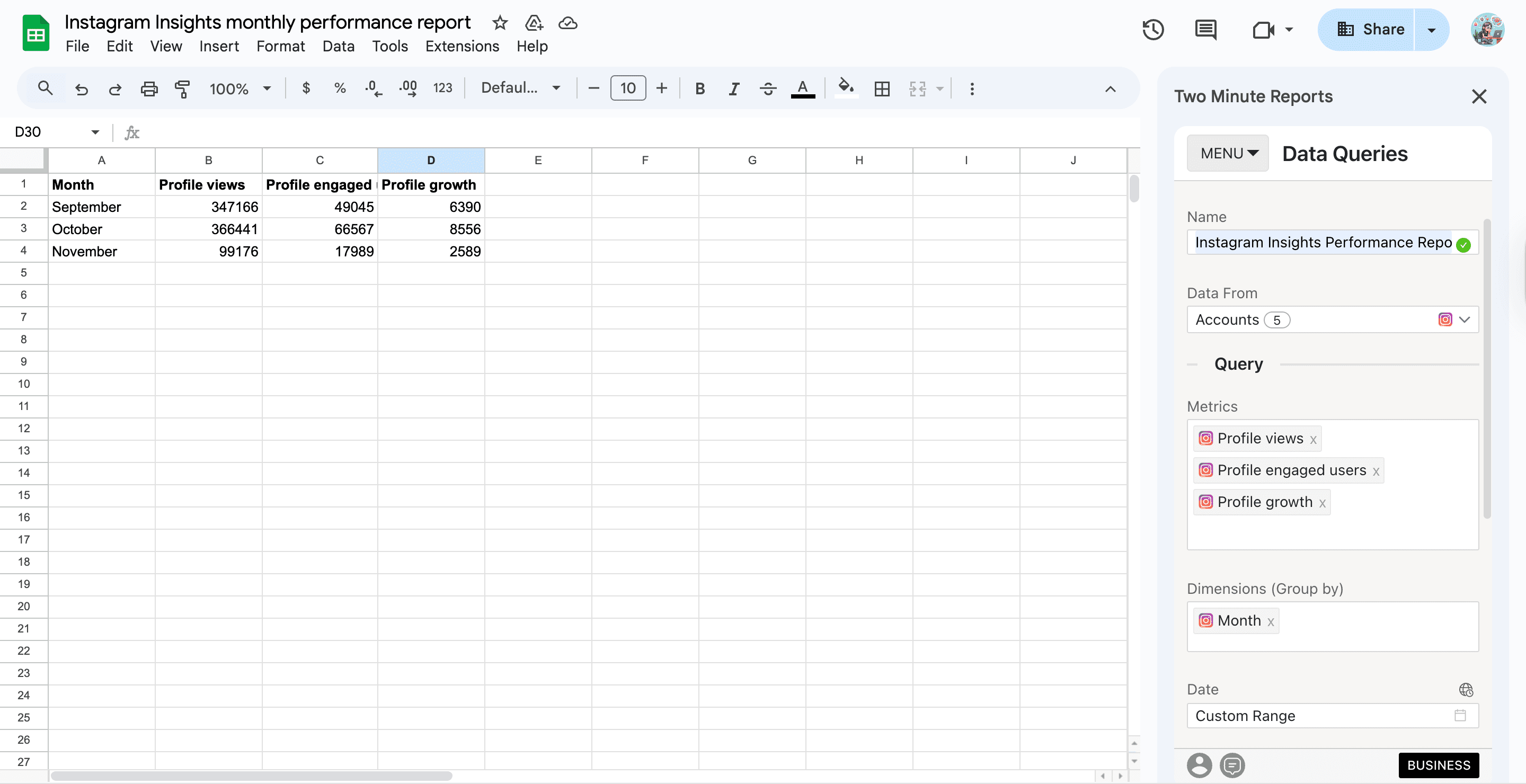

Pro tip: You can set up automated refresh schedules (daily, weekly or monthly) and keep your clients informed with live, real-time performance updates.
Pro TMR tip: Run all your queries directly from the Extensions menu on your Google Sheets. Go to Extension > Two Minute Reports > Choose your desired quick action.
While creating your Instagram Insights report through the sidebar is straightforward, there’s also another easier way to streamline your profile performance analysis. Let’s look at leveraging Instagram Insights reporting via built-in templates.
Method 2: Create Instagram Insights report using pre-built templates
You can access the Instagram Insights Google Sheets templates via:
Extensions > Two Minute Reports > Templates
- In the template gallery, you can choose your Instagram Insights template to streamline profile performance tracking.
- Next, click Use to build your report. Your template will open in Google Sheets.
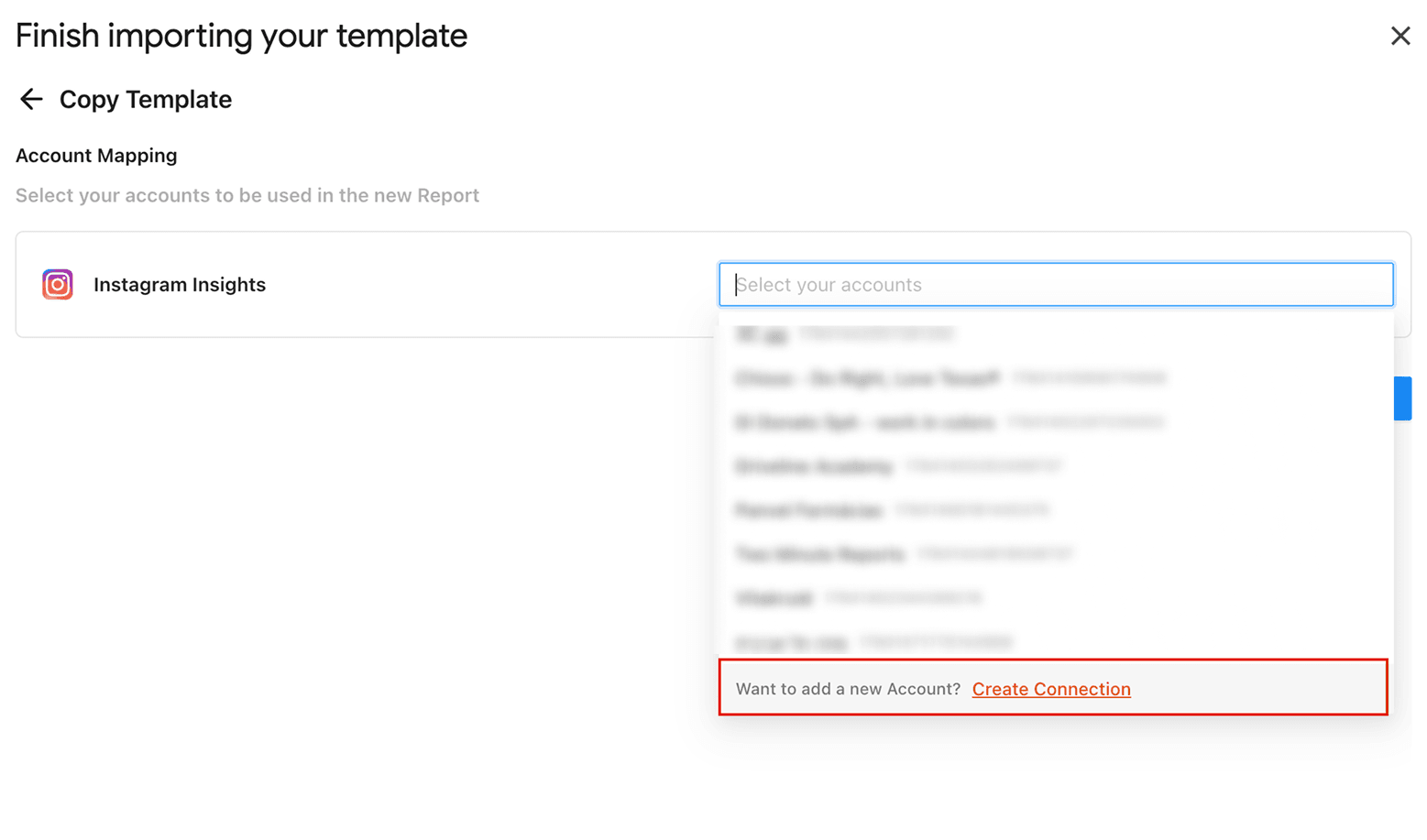
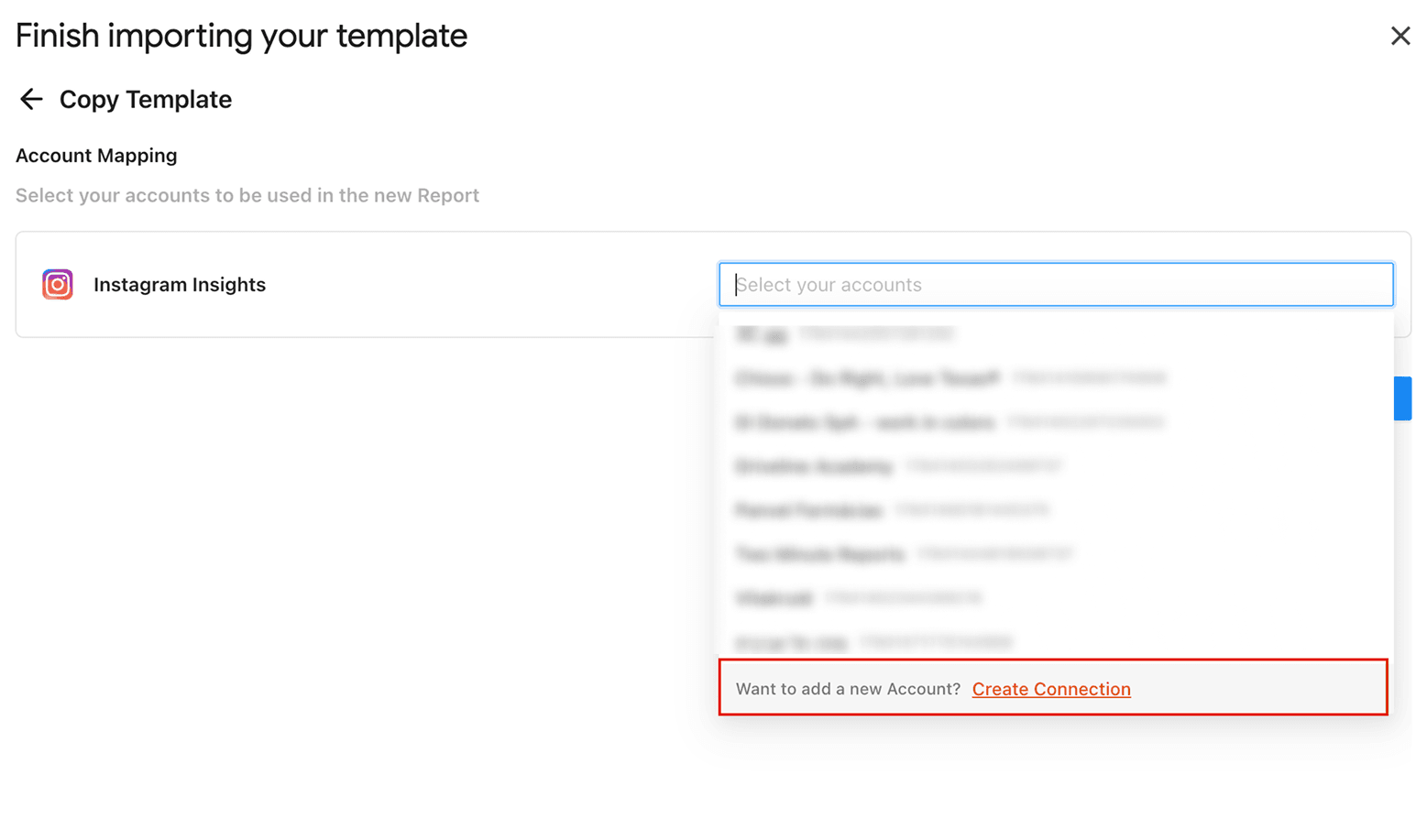
- Finish importing your template by selecting the required Instagram Insights accounts from the dropdown. Once done, click Submit to create your report.
- Next, click Extensions > Two Minute Reports > Run all queries to auto-populate your dashboard with actionable performance insights.
Common Mistakes to Avoid When Connecting Instagram Insights Data to Google Sheets
When you connect Instagram Insights data to Google Sheets, you might encounter a series of challenges. These issues not only slow down reporting but also lead to inaccuracies that can impact your decision-making. Let’s understand the core issues and the actionable steps to streamline your workflow.
1. Manual data entry errors
Issue: Manually copying and pasting Instagram insights KPIs into Google Sheets is prone to errors, such as misaligned rows, incorrect calculations, and inconsistent labelling.
Solution: Use Two Minute Reports' Instagram Insights reporting tool to connect your client(s) Instagram accounts in a centralized dashboard. In this way, you can automatically map key social media metrics and share streamlined dashboards with updated performance insights.
2. Slow or outdated data sync
Issue: If you rely on manual exports or slow sync processes, your reports may show outdated performance insights, leading you to make decisions based on metrics that are no longer relevant.
Solution: With our exclusive Speedboost technology, you can retrieve large Instagram Insights datasets quickly – no engineering setup required. You can experience faster data syncs and ensure your reports are always ready for action.
3. Tracking too many metrics at once
Issue: With different social media marketing goals, it can be overwhelming for you to manage and report on all the data, especially across multiple clients.
Solution: Prioritize key performance metrics that directly correlate to your client’s goals. With Two Minute Reports’ Instagram Insights templates, you can create custom dashboards that display only the data you need, helping you eliminate clutter and improve clarity.
4. Lack of real-time updates
Issue: Without automation, updating reports in Google Sheets becomes a repetitive and time-consuming task, especially when dealing with large volumes of data.
Solution: Set up custom refresh schedules (daily, hourly, weekly, or monthly) to auto-update and send them to clients directly. In this way, you can stay ahead with the latest performance insights and refine your content strategy to boost audience engagement and ROI.
Top metrics to streamline your Instagram Insights Analytics
Here’s a breakdown of key metrics to track and optimize your Instagram Insights analytics and reporting.
Get Instagram Insights data in Looker Studio
Visualize profile performance insights, content engagement, and audience growth with interactive charts by connecting your Instagram Insights account to Looker Studio via the Two Minute Reports hub. Easily track key metrics, uncover latest trends, and make strategic decisions in real-time. This allows you to identify what’s working, optimize your existing framework, and present clear, actionable reports to your team or clients in a unified platform.
Connect your social media platforms with Google Sheets
Simplify and streamline your social media reporting by bringing together key metrics from Facebook, Instagram, LinkedIn, etc, in a single dashboard. With seamless integration, you can customize your dashboards to focus on the key KPIs that matter most – no need to struggle with broken reports or mismatched client performance data.
Frequently Asked Questions
Install the Two Minute Reports add-on from the Google Workspace Marketplace. Next, open your spreadsheet, launch the sidebar, and connect your Instagram Insights accounts. Then specify your metrics, dimensions, date range and click Run query. Visualize actionable performance insights without having to manually switch spreadsheets.
With Two Minute Reports, you can set up custom refresh schedules – daily, hourly, weekly or monthly and ensure your Instagram Insights reports reflect the latest profile performance and engagement insights. Deliver professional, white-label reports directly from Google Sheets to your clients within minutes.
You can access our free, ready-to-share Instagram Insights Google Sheets templates to streamline performance tracking. Once you click “Use Template”, you can launch the Two Minute Reports add-on, import your client’s accounts, run queries and auto-populate the dashboard with meaningful insights.
You can choose to directly select your client’s Instagram Insights accounts from the Two Minute Reports sidebar and consolidate key KPIs in one place. Alternatively, you can also reuse the existing reports across multiple clients, ensuring you align content strategy with performance insights and maintain consistency across all marketing initiatives.

Meet the Author
Shalini MuruganShalini is driven by ideas that create a tangible impact. At Two Minute Reports, she specializes in content that helps marketers optimize their reporting workflows. When she's not transforming complex data into meaningful insights, you might find her lost in a book, jotting down ideas in her notebook, or connecting the dots others overlook.